
ClipNamer
ClipNamer is an Audio Post application for naming clip groups in Pro Tools. It handles categories and cues, works inside your open session, and learns your naming conventions from the clips you have already named.
How it works
- In Pro Tools, select the clip or clips you want to name.
- Open the ClipNamer window. It floats over your session.
- ClipNamer reads which track you're on and selects the category.
- Begin typing what you'd like to name it, and a suggestion list populates.
- Confirm the name. The clip is renamed in Pro Tools.
A closer look
Click any screenshot to enlarge.
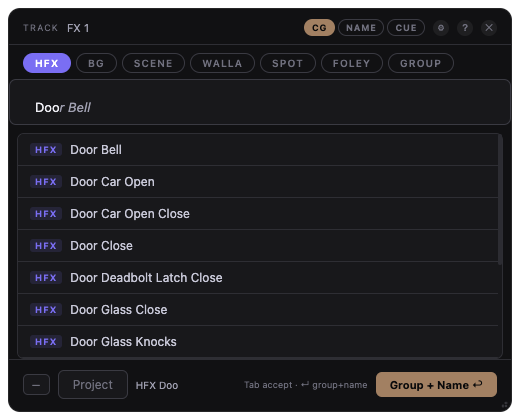
The naming window
The track you're on shows at the top, next to the mode and category ClipNamer selected. Along the bottom, a live preview shows the exact name that will be written before you confirm it.
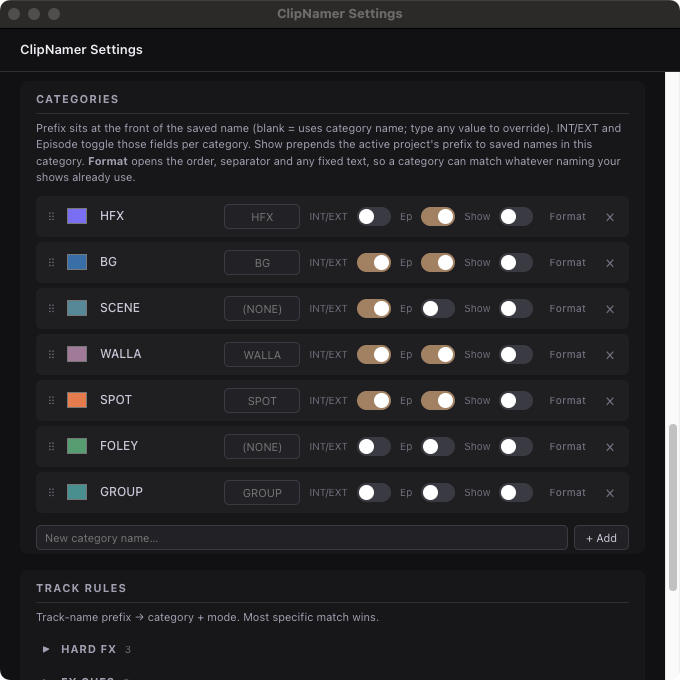
Categories
Seven come with the app: sound effects, backgrounds, scenes, walla, spot, foley and loop group.
You are not limited to these. Rename them, recolour them, remove the ones you don't use, or add your own.
Each carries its own prefix, episode field, INT/EXT row and suggestions.
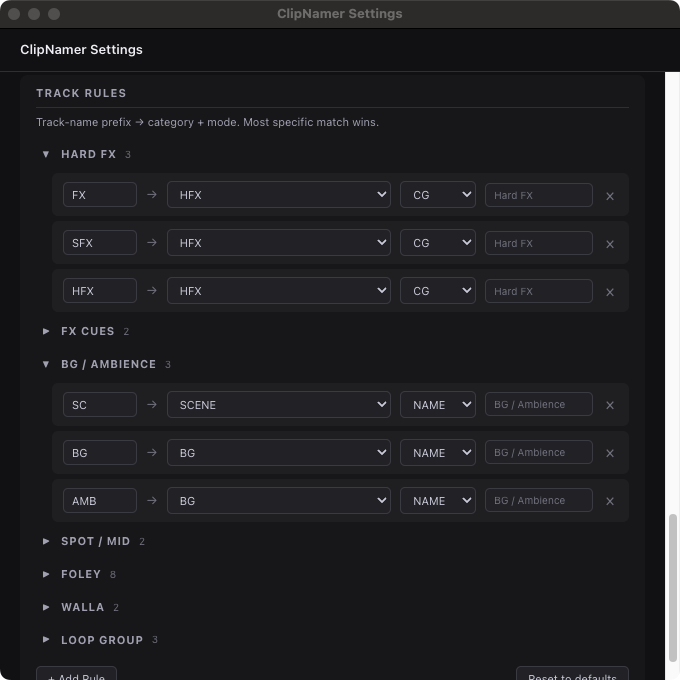
Track rules
A rule maps a track-name prefix to a category and a mode. Twenty-three ship configured for standard post layouts. The longest matching prefix wins, so a specific rule overrides a broad one.
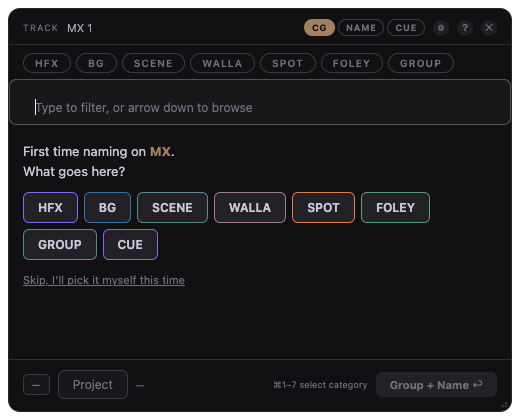
New tracks
On a track that matches no rule, ClipNamer asks what goes there. The answer is saved as a rule, so it only asks once per track name.
Details
Three modes
CG groups the selection and names it. NAME renames a clip group that already exists, without re-grouping. CUE groups it and names it exactly what you type, with no category prefix.
The track you're on sets the mode, and you can switch it in the naming window.
Adapts to how you work
Every name you commit is remembered and ranked by how often and how recently you use it, so the list becomes your vocabulary rather than a generic one.
Point ClipNamer at a folder of clip groups you have already exported and it knows your names from the first session.
The more you use it, the less you need to type: a few keystrokes and the name you want is usually already in the list.
Projects
Each show keeps its own episode number and an optional prefix. Switch between them from the naming window.
Who it's for
Anyone working on sound effects, foley, loop group, or supervising.
Requirements
- macOS
- Pro Tools
Guides
Price
Pricing
A one-time purchase for a standalone application.
For one user. The licence key activates on up to three computers.
- Activates on a computer with no internet
- Move the licence to another computer
Prices in USD.
FAQ
Common questions
Does it work offline?
Yes. The one time ClipNamer goes online is to activate your licence key, and there is a route for that which needs no network at all: the app shows a code, you enter it on a phone or another computer, and type the answer back. After that it never goes online again.
Does it work with my track layout?
It ships with rules for standard Pro Tools post layouts. On a track it doesn't recognise it asks what goes there and saves your answer as a rule, which it remembers for all future use.
Can I use my own naming conventions?
Yes. Each category's prefix, INT/EXT row, episode field and project prefix are editable in Settings, and you can add categories of your own. You can also set the order of every part of the name, the separator between them, and any fixed text.
What if I work on several shows at once?
Add a project for each. Each one keeps its own episode number and optional prefix, and you switch between them from the naming window.
Do I lose my setup if I get a new computer?
No. Settings exports a backup file that carries your categories, track rules, projects, shortcuts, and preferences. Restore it on the new computer.
Get ClipNamer