Section 1
Welcome to TrackRoom
TrackRoom is a sound application built for musicians to work on songs together. Share mixes and tracks, leave feedback, group songs into albums, keep lyrics and tabs alongside the audio, and message each other. It can be used on the web, iPhone, and Android, all signed in with the same account.
What you'll find in this guide
This guide walks through every part of TrackRoom in order, from signing in for the first time to managing your account. If you're just getting started, begin at the top. If you're after one feature, jump to its section using the contents list.
Section 2
Getting started
Sign in and you'll land on your band's home: your library of songs.
You can sign in with Google, with Apple, or a one-time link sent to your email. There's no password to set up.
Creating something new
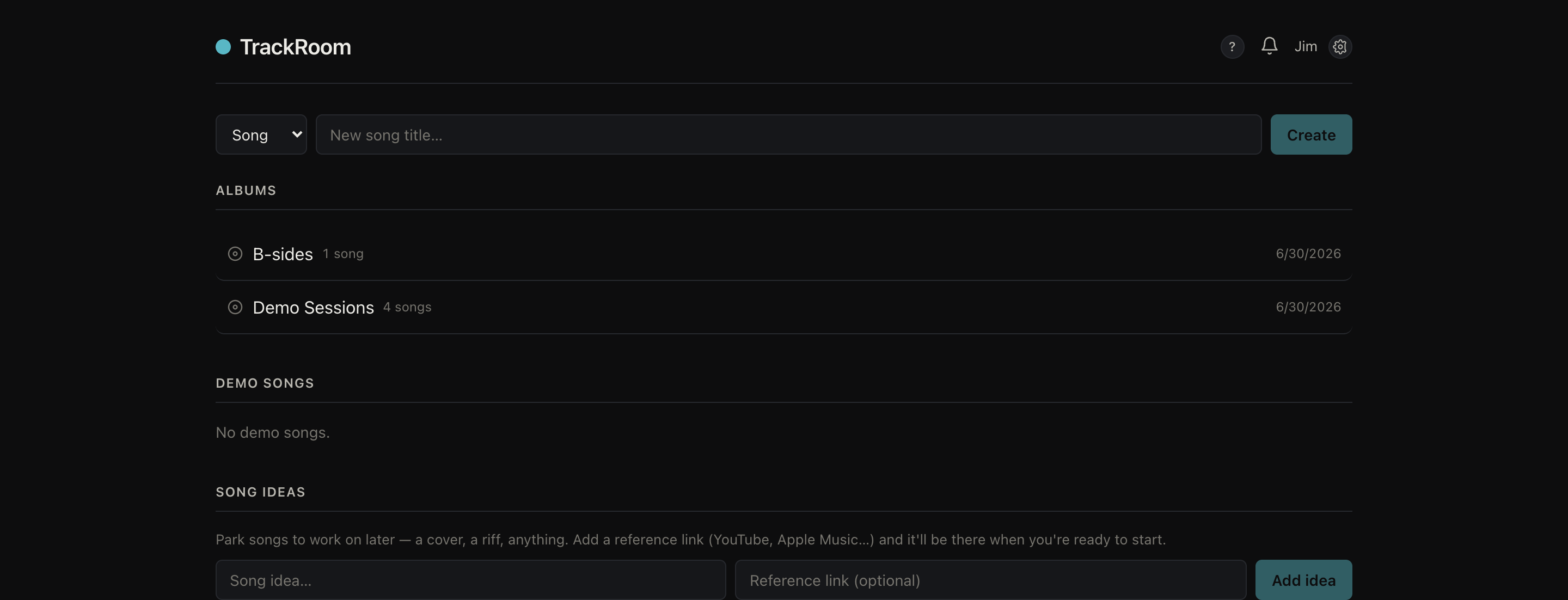
Use the bar at the top of the home screen to create a Song, an Album (a group of songs), or a Setlist. Choose the type, give it a name, and select Create. Open a song to add versions, lyrics, tabs, notes, and feedback.
A Setlist is an optional ordered list of songs for a gig or rehearsal: add songs, reorder them with the up and down controls, and taking one out of the setlist doesn't delete the song.
Reading the dots
A colored dot next to a song shows its stage (No music yet, Rough demo, Arranging, or Arranged) so everyone can see at a glance where a song is. A white dot means there's new activity on that song since you last looked.
Finding a song
Search to find a song by its title, lyrics, tabs, or notes. Useful once your library grows.
Song ideas
The home screen also has a Song ideas spot: a place to park a cover, a riff, or anything you want to come back to later. Jot a title, optionally drop in a reference link, and it's waiting when you're ready to turn it into a full song.
Section 3
Inviting your band
You bring people in per project. Open an album (or an individual song) and its sharing controls sit along the top. Anyone you invite can play the versions, add their own, leave feedback, and join the discussion.

Two kinds of link
- Join link: one reusable link the whole group joins with. Best for getting your whole band into an album at once.
- Invite: a one-time link for a single person. It expires after 7 days.
Copy a link and send it however you like: text, email, group chat. When someone opens it and signs in, they're added to that album or song.
Who can invite
By default any member can invite others. The owner can switch a project to Owner-only invites so that only they can add people.
Names shown on versions, tracks, and comments come from each person's display name in their settings, so it's always clear who did what.
Section 4
Songs & versions
A song holds all of its takes as versions: every mix or rough you upload as the song evolves.
- Open a song and select + Upload version to add a mix or take. Add as many versions as you like.
- Rename a version with the pencil, and reorder versions with the ▲▼ controls. The top version stays pinned as you scroll.
- Re-uploading a version carries its comments forward, so feedback isn't lost between takes.
A song is also home to the rest of its material:
Sheet music & files
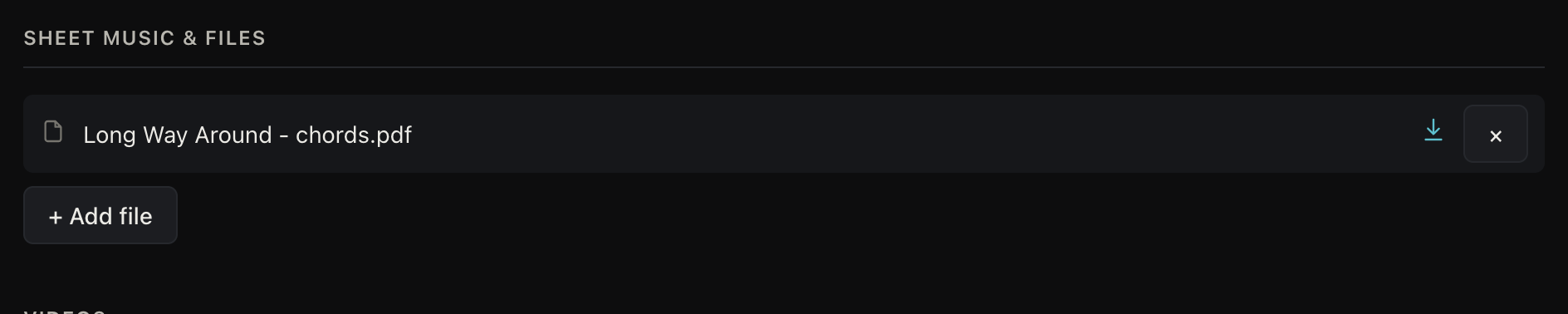
Use + Add file to attach documents to a song: PDFs and images such as chord charts and lyric sheets. They open in a built-in viewer so you can read along while the song plays, and anyone can download a copy.
Videos
Add a clip with + Add video: a rehearsal recording, a live take, or a performance to learn from. It plays right on the song page.
Notes
Every song has a free-form Notes area for anything that isn't lyrics or chords: arrangement ideas, a to-do list, who's playing what. Like lyrics and tabs, notes autosave as you type and can be opened full-screen.
Reference links
You can also paste a link from YouTube, SoundCloud, or other streaming music apps onto a song (say, the original track you're covering) and it plays right there on the page. Some services, like Spotify and Apple Music, only play a short preview unless you're signed into that app in your browser. Any other link shows as a tidy card. Add an optional label so everyone knows what it is.

Section 5
Tracks
Under any version you can add the tracks that make up the mix (drums, bass, vocals, and so on), so the band can listen part by part.
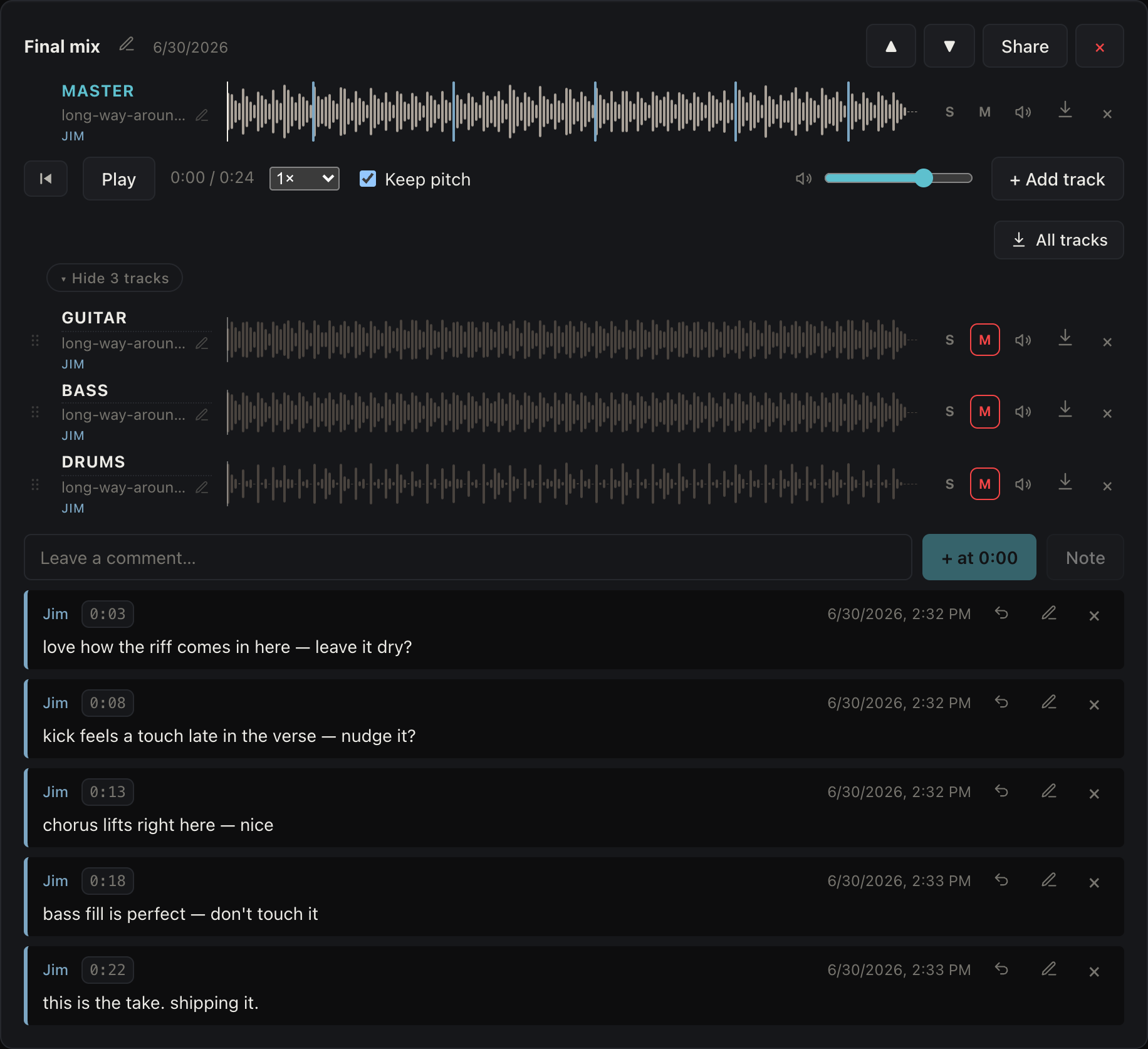
- Open a version and select + Add track. You can pick several files at once, and TrackRoom guesses each one's slot from its filename.
- Mute or solo each track to focus on a part, and drag tracks to reorder them.
- Download a track to drop it straight into your own setup or DAW.
Tracks play in sync, so soloing the vocal or muting the drums lines up perfectly with the rest of the mix.
Need everything at once? All tracks downloads every track from a version as a single zip, ready to drop into your DAW.
You can also nudge a track's Listen level up or down to hear it better against the rest. It's a temporary listening aid, not a saved mix, so it resets when you leave the song.
Section 6
Playing & practicing
Every version has a player built for working on a part, not just hearing it.
- Play and pause from the controls, or with the spacebar on a computer (it plays the top version). Back to start jumps to 0:00.
- Slow it down. Drop the speed to pick out a fast part, with an option to Keep pitch so it stays in the original key.
- Loop a section. Drag across the waveform to mark a stretch, then turn on Loop to repeat just that part until you have it.
- Volume is remembered, so it's where you left it next time.
Section 7
Timestamped feedback
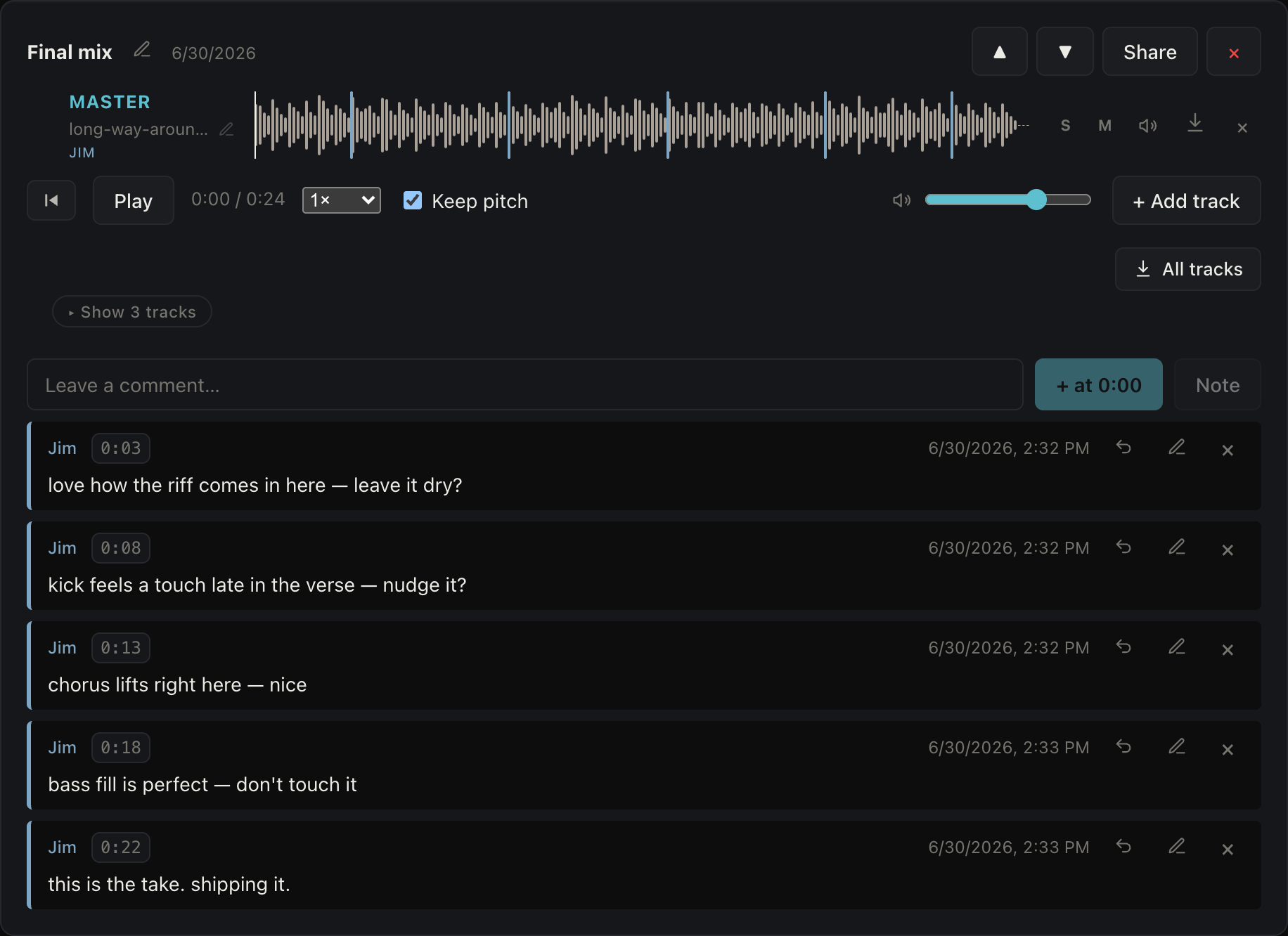
In TrackRoom you can comment at the exact moment in the song to leave notes or comments.
Leaving a comment
- Play a version and type into the Leave a comment… box.
- Select + at 0:42 (the button shows the current playhead time) to leave the comment at that moment. It then shows up as a marker on the waveform.
- Or select Note to leave a comment about the whole song, with no timestamp.
Managing comments
Select Reply under any comment to respond in a thread. You can edit or delete your own comments at any time, and the song's owner can remove any comment. Selecting a comment's timestamp jumps playback straight to that spot.
Section 8
Albums & discussion
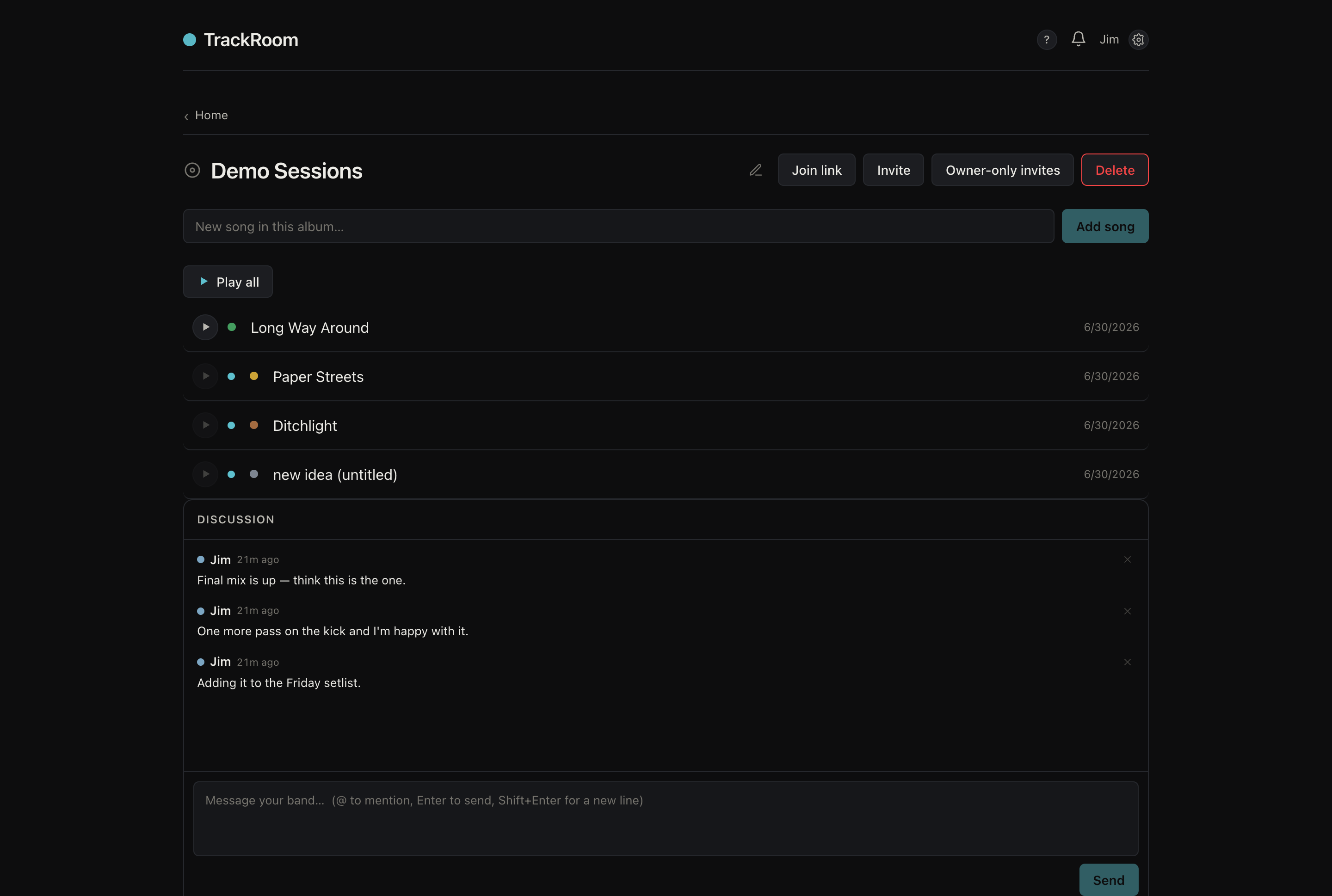
An album groups related songs together (an EP, a record, or just a batch you're working on) with a discussion thread for the whole project.
Creating an album and adding songs
- From your band's home, create an Album and give it a name.
- Open the album and use the New song in this album… field, then select Add song to create a song inside it.
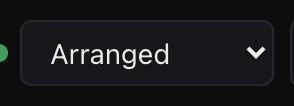
An existing song can be moved into an album from the album dropdown at the top of the song.
Play the whole record
Open an album and select Play all to listen end to end. TrackRoom auto-advances through each song so you hear the record in order, and the ‹ › controls at the top of a song jump to the previous or next track. If a song has a reference link instead of an uploaded mix, you can audition that right from the album too.
The discussion thread
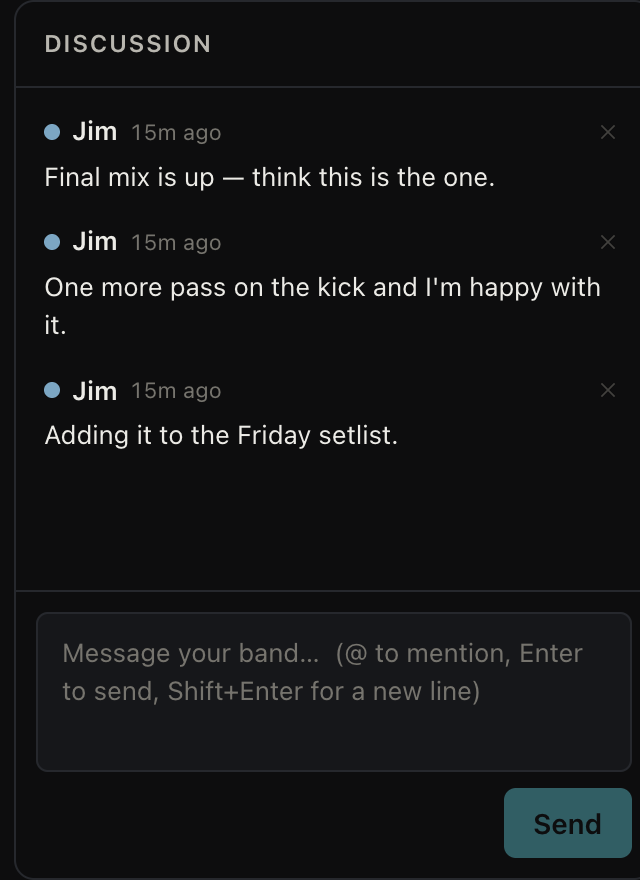
Every album has a Discussion: a running thread for the band to coordinate. Type into Message your band… and press Enter to send (use Shift+Enter for a new line). Type @ to mention a bandmate; they'll get a notification so the right person sees it.
Section 10
Lyrics & tabs
Keep the words and the chords right next to the audio. Each song has space for lyrics and for tabs / chords.
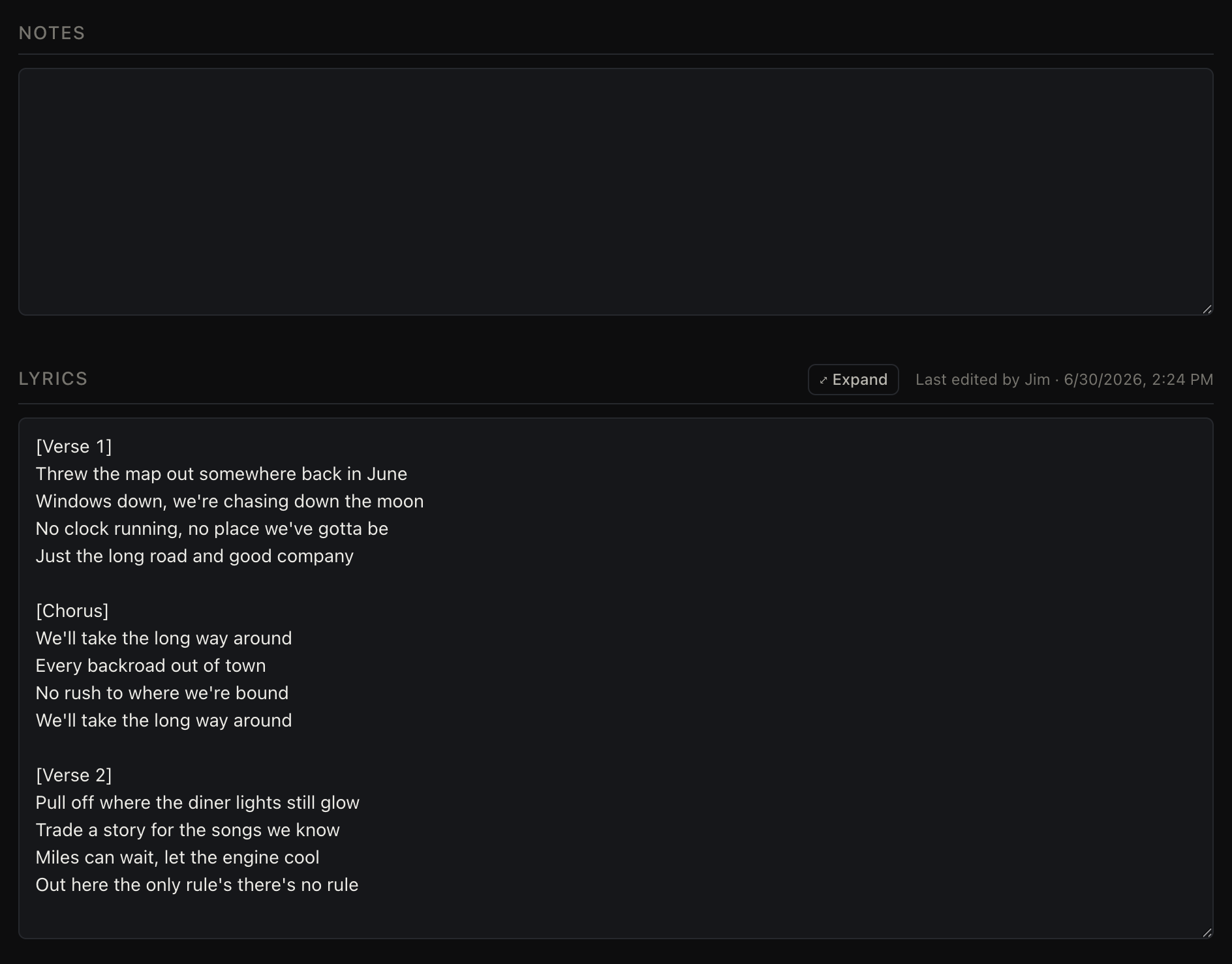
- Open a song and type into Lyrics or Tabs / chords. Tabs are shown in a fixed-width font so chords line up over the words.
- Your changes autosave as you go: you'll see Saving…, then Saved, plus who last edited.
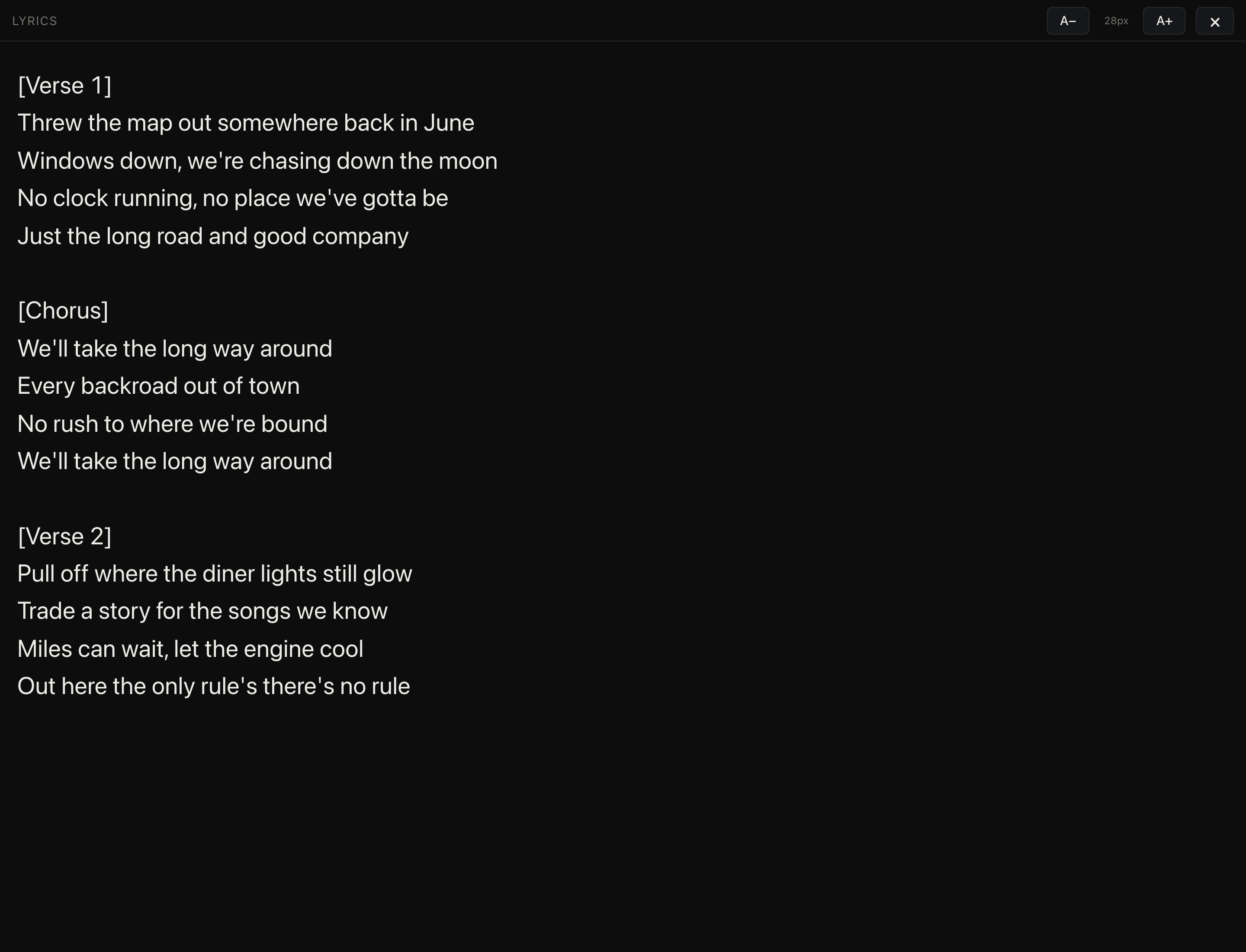
- Select ⤢ Expand for a full-screen view, handy for following along while you play. Use A− / A+ to size the text, edit right there if you need to, and Esc to close.
Section 11
Listening offline & in the car
TrackRoom keeps working when you step away from a good connection.
Save a song for offline
On a song, select Save offline to keep a copy on your device. It plays with no signal, handy on a plane, in a basement practice space, or on a spotty drive. Manage what you've saved, and how much space it uses, under Settings → Offline downloads, and remove a copy anytime.
Install it like an app
If you use TrackRoom in a browser, you can install it as a standalone app: on a computer, use the install icon in the address bar; on a phone, add it to your home screen. Either way it opens in its own window, full screen, with no address bar. The iPhone and Android apps already work this way.
Background and car playback
An album keeps playing when you lock the phone or switch apps, with the usual controls on your lock screen and over Bluetooth. On iPhone, albums also show up in CarPlay, so you can run through the record from the car's screen.
Section 12
Notifications
TrackRoom keeps everyone in the loop without burying you in alerts.
The bell: your Activity feed
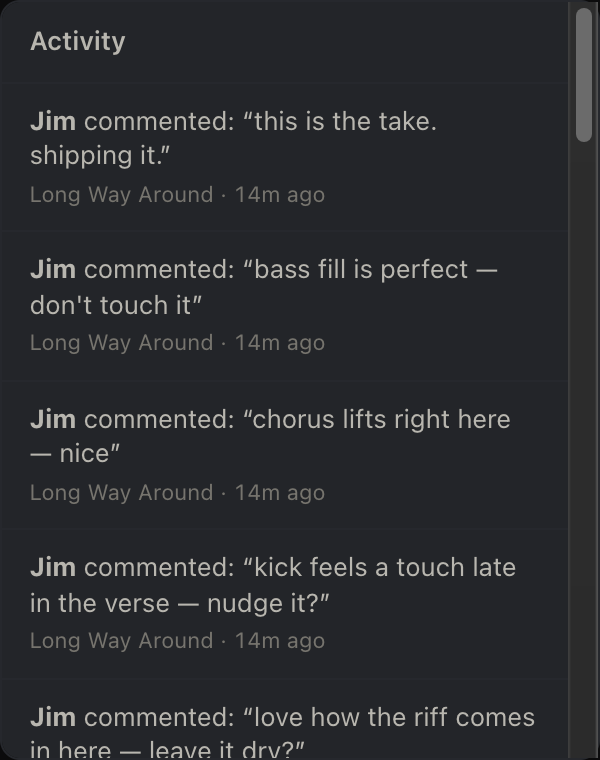
The bell in the top header opens Activity: every new version, track, comment, and @mention across your band's songs, with a badge showing how many are unread. This is the full firehose, so open it any time to catch up.
Email and push
For the things that matter most, TrackRoom can reach you outside the app. In Settings you can turn on:
- Email: a message when a bandmate adds a version, comment, or file, or @mentions you.
- Push notifications on a device: mentions and new versions, sent to that device (where your browser or phone supports it).
Section 13
Your account & settings
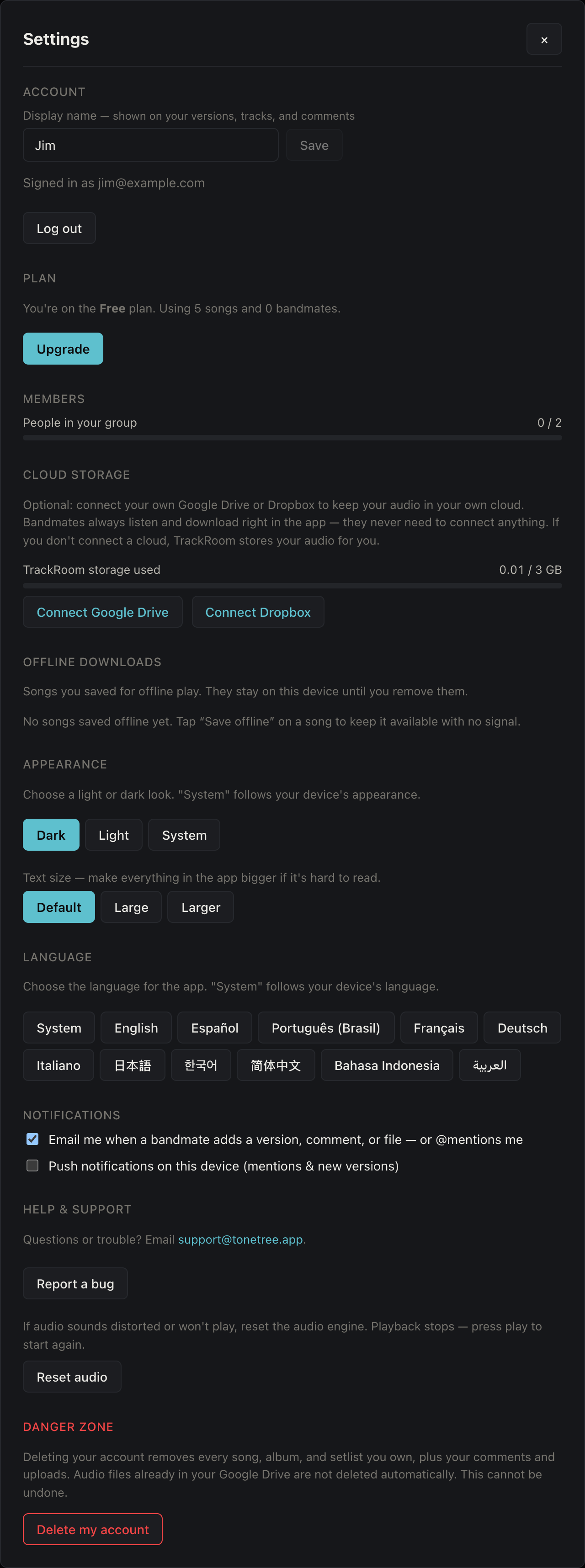
Open Settings to manage your profile, plan, notifications, and more.
Your profile
Set your Display name (the name shown on your versions, tracks, and comments) and select Save. You'll also see which email you're signed in with, and can Log out here.
Your plan
The Plan section shows the plan your band is on, including the days left in your free trial. After the trial, you'll see how many songs and bandmates you're using on the free plan, with the option to Upgrade any time to keep the full app.
Cloud storage (optional)
If you'd rather keep your audio in your own storage, you can connect Google Drive or Dropbox from the Cloud storage section. A storage bar shows how much you've used.
Appearance
Choose Dark, Light, or System to match your device.
Language
TrackRoom is available in eleven languages. By default it follows your device, and you can set it yourself under Language.
Text size
Make everything in the app bigger under Text size (Default, Large, or Larger) if it's hard to read.
Offline downloads
See the songs you've saved for offline play and how much space they use, and remove any you no longer need. (See Section 11.)
Reset audio
If audio ever sounds distorted or won't play, Reset audio restarts the playback engine. Playback stops; press play to start again.
Report a bug
Found something off? Use Report a bug to send us what happened. TrackRoom attaches your app version and device details automatically so we can chase it down.
Section 14
Getting help
Common questions
- Audio won't play or sounds distorted. Open Settings → Reset audio to restart the playback engine, then press play.
- A sign-in link didn't arrive. Check your spam folder and request a new one. TrackRoom signs you in with Google, Apple, or a one-time email link, so there's no password to reset.
- An upload failed. Check your connection and try again; larger files take longer to finish.
- A song I saved offline won't play. Under Settings → Offline downloads, remove the copy and save it again, and make sure your device has space.
- I can't see a bandmate's latest change. Everything syncs across devices; reopen the song to refresh. A white dot marks new activity since you last looked.
Still stuck?
If something isn't working the way you expect: